Open Headunit
André RinasMaps & Navigation
4.135.00 Reviews
- Version
- 3.2.5
- Installs
- 10.00K
- Age Rating
- Everyone
Screenshots
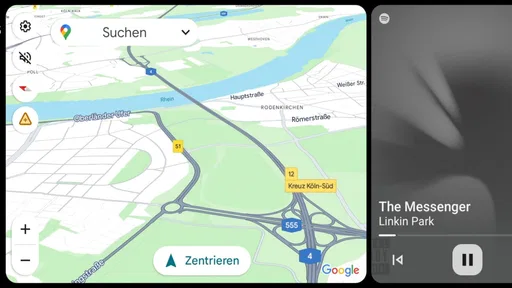
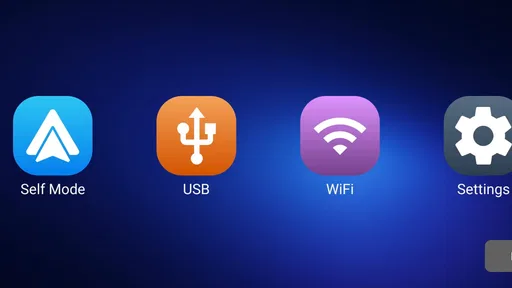
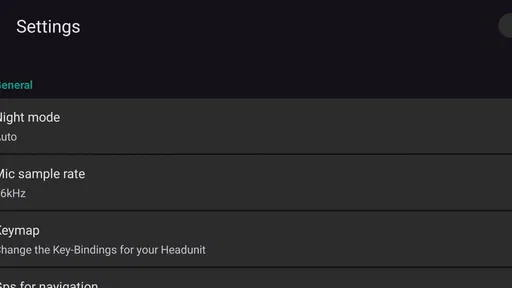
Our Review of Open Headunit
 Analysis by Appyee
Turning an Android tablet into a car-style display sounds simple until the first connection fails, the screen stays blank, or the phone appears connected but nothing useful happens. Open Headunit is designed for that exact idea: it lets an Android tablet work as an Android Auto head unit through USB or a wireless connection. I found its appeal less in flashy extras and more in the way it gives an older or spare tablet a focused role in the car.
This is a paid Maps & Navigation app from André Rinas, priced at $3.99, with an Everyone age rating. Its current version is 3.2.5, and it supports Android 5.0 or later. The app has reached over ten thousand installs and holds a 4.1 average from around 291 ratings, which suggests a useful but fairly specific tool rather than a universal replacement for a built-in dashboard system.
Where the first connection usually gets stuck
The most important thing to understand is that Open Headunit is not simply a navigation app that happens to show a map. Its job is to act as the receiving side of Android Auto on another Android device. That means the phone, tablet, cable, wireless link, Android Auto software, and vehicle environment all have to cooperate. When one part is wrong, the tablet can look as if the app is broken even when the real problem is elsewhere.
In my experience, the biggest source of confusion is expecting the tablet to behave like a normal second screen immediately after installation. The phone still provides the Android Auto experience, while the tablet serves as the head-unit display. If the phone is not ready to start Android Auto, Open Headunit has nothing to present. This distinction saves a lot of pointless tapping inside the tablet app.
USB connections are usually the better starting point for a first test because they remove one layer of uncertainty. Use a cable that can carry data, not one intended only for charging, and connect the phone directly to the tablet rather than passing through a hub or adapter whenever possible. A tablet may show that it is charging or recognize a physical connection without establishing the data session required for Android Auto.
Wireless use is more convenient once it works, but it can be harder to diagnose. Bluetooth pairing, Wi-Fi availability, and Android Auto's own connection process can all be involved. If the wireless route fails, I would not keep changing several settings at once. I would return to a direct USB test, confirm that the basic arrangement works, and then move back to wireless with only one change at a time.
Another common sticking point is the tablet itself. A large screen is attractive in a car, but a tablet that is slow to wake, aggressively closes background activity, or has an unreliable charging connection can make the whole setup feel unstable. Open Headunit cannot compensate for a loose mount, a damaged port, a weak cable, or a device that keeps putting the app to sleep.
What I check before blaming the app
I begin with the simplest arrangement: the tablet is charged, the phone is unlocked, the cable is firmly seated, and both devices are close enough for any wireless step to work reliably. I also remove unnecessary accessories from the test. A short, direct connection is much more informative than a permanent installation with several adapters and a crowded dashboard.
Then I check whether the tablet can remain awake long enough for the session to begin. Screen timeout, battery-saving behavior, and automatic app suspension can interrupt a head-unit-style setup. The exact names of these controls differ between tablet brands, so I treat them as device settings rather than Open Headunit settings. The practical goal is simply to prevent the tablet from sleeping or restricting the app during a drive.
It is also worth checking the physical position of the tablet before investing time in software troubleshooting. The display should be visible without blocking the driver's view, and the cable should not be pulled sideways by the mount. A connection that works on a desk may fail in the car because the tablet shifts slightly and stresses the port.
For a first launch, I recommend testing while parked. Start the app on the tablet, prepare Android Auto on the phone, and wait for the connection rather than repeatedly unplugging and reconnecting. If the screen does not respond, close the session cleanly and try again with the same arrangement. This creates a useful baseline and avoids confusing a temporary handshake delay with a permanent failure.
The most useful setup habit is to change one variable at a time. If you replace the cable, switch from USB to wireless, alter battery settings, and move the tablet simultaneously, you will not know which change helped. With a tool that depends on several devices, disciplined testing is more valuable than a long list of random fixes.
USB first, wireless second
USB is the mode I would recommend to anyone evaluating the app for the first time. It is less elegant than a wireless arrangement, but it provides a clearer answer to the basic question: can this phone and this tablet establish an Android Auto session at all? Once that works, wireless becomes an optional convenience rather than a mystery.
A successful USB test does not guarantee a perfect permanent installation. The cable may be too short for the final mount, the tablet port may be awkwardly placed, or the phone may need to be positioned differently. Still, the test separates software compatibility from installation design. That is a valuable distinction before buying a new mount or rearranging the dashboard.
Wireless is best treated as a second-stage workflow. Pair the devices as required by the Android Auto setup, keep them near each other during the first attempt, and avoid testing in an area with many competing wireless connections if the session repeatedly drops. If USB remains dependable while wireless does not, that points toward the wireless environment or device configuration rather than the core display function.
I would also keep the phone's usual Android Auto behavior in mind. If the phone cannot start Android Auto in another compatible environment, Open Headunit is unlikely to repair that underlying issue. The app provides the tablet-side destination; it does not turn an unprepared phone into a fully functioning Android Auto source.
Recovering a session without starting over
Once the connection has worked once, the next challenge is recovery. A failed session does not always mean the complete setup must be rebuilt. I first look for the smallest interruption: is the tablet awake, is the cable still seated, and is the phone still connected? If the answer to those questions is yes, I try returning to the app rather than clearing data or changing system settings.
If the tablet screen is frozen, I disconnect only the connection that is clearly at fault, wait briefly, and reconnect. A full device restart can help, but it should be a later step because it removes useful clues. When troubleshooting, preserving the same cable, phone position, and tablet placement makes it easier to tell whether the recovery actually solved anything.
For wireless sessions, I use a more deliberate reset. I stop the current attempt, bring the devices close together, and start the connection again from the normal Android Auto path instead of launching several connection methods in parallel. Repeatedly toggling Bluetooth and Wi-Fi without a clear sequence can leave the user unsure which link is active.
One practical advantage of using a dedicated tablet is that it can remain mounted and ready while the phone stays in the driver's usual position. That can make navigation easier to see than relying on a small phone screen. However, the convenience depends on the tablet being treated as part of the vehicle setup: it needs a stable mount, reliable power, and a predictable wake-and-connect routine.
I would create a short pre-drive routine rather than troubleshoot while moving. Check that the tablet is awake, confirm the phone has connected, and start navigation before leaving. If the session fails later, pull over before handling cables or settings. This is not just good troubleshooting practice; it prevents the app's convenience from becoming a distraction.
Useful recovery decisions
If USB works but wireless does not, keep USB as the dependable fallback. There is no benefit in sacrificing a stable connection merely to avoid one cable. Conversely, if wireless works consistently and the cable connection is unreliable, inspect the cable and ports before assuming the app is at fault.
If the app opens but the Android Auto interface never appears, I would focus first on the phone-side session and the data connection. If the interface appears and then disappears when the tablet sleeps, I would focus on the tablet's display and battery behavior. These symptoms look similar to a new user, but they point to different parts of the setup.
If a restart fixes the problem only once, I would not call the issue solved. A reliable arrangement should survive ordinary use, including waking the tablet, reconnecting the phone, and starting a new trip. Test those steps several times while parked. This is where a cheap spare tablet can reveal its weaknesses before it becomes part of a daily commute.
The app's paid price makes this testing worthwhile before committing to a permanent installation. At $3.99, it is inexpensive compared with replacing a vehicle stereo, but the real cost can come from accessories, time, and frustration if the tablet or phone is unsuitable. I see the purchase as a practical experiment for people who already have compatible hardware, not as a guarantee that every Android tablet becomes a polished factory head unit.
When the app is not the cause
Some failures belong clearly to the surrounding hardware. A charging-only cable, a loose USB port, an unstable mount, or a tablet that shuts down under load can interrupt the session regardless of which head-unit app is installed. In those cases, switching applications may produce the same result.
The phone can also be the limiting factor. Android Auto must be available and able to start its own session. If the phone is restricted by its system configuration, cannot maintain the required wireless connection, or behaves inconsistently with other Android Auto destinations, Open Headunit is only the visible part of the problem.
There is a similar distinction with navigation. Open Headunit provides the receiving display for the Android Auto experience; it should not be judged as though it were an independent mapping service with its own route database. If your main need is offline maps, hiking trails, cycling routes, or detailed trip planning outside the car, a dedicated navigation app is a better match.
A built-in vehicle system is also preferable when you want an integrated microphone, steering-wheel controls, automatic startup, factory audio behavior, and a display designed specifically for the car. Open Headunit is more interesting for people who want to reuse an Android tablet, experiment with a flexible setup, or avoid replacing the vehicle's existing hardware.
Compared with using a phone alone, the tablet arrangement can offer a larger, more readable dashboard view. The trade-off is another device to mount, charge, protect, and keep updated. Compared with a dedicated aftermarket head unit, it is cheaper and more reversible, but usually requires more hands-on setup and troubleshooting. That balance is the central question: do you value flexibility enough to accept a little maintenance?
Who will get the most from it
I think Open Headunit is a strong fit for someone with an unused Android tablet and a phone that already handles Android Auto well. It is especially appealing for a temporary vehicle, a second car, a workshop vehicle, or a driver who wants a larger display without immediately changing the dashboard hardware.
It can also suit technically comfortable users who enjoy refining a setup. The ability to begin with USB, verify the basics, and then explore wireless use gives the project a sensible path. The app's broad minimum Android requirement, beginning with Android 5.0, may make older tablets worth testing, although age alone does not promise a smooth experience.
I would be more cautious if you need a completely appliance-like experience. A person who expects to install one app, place a tablet in the car, and never think about cables, pairing, sleep settings, or recovery may be happier with a factory system or a dedicated aftermarket unit. The same applies to drivers who do not already have suitable Android Auto hardware on the phone side.
The Everyone rating makes the app broadly suitable from an age-classification perspective, but that should not be confused with suitability for every driving situation. Any dashboard display needs careful placement, and setup adjustments should be made while parked. The app can support a useful in-car workflow, but it does not remove the driver's responsibility to keep attention on the road.
My practical verdict
After looking at the complete workflow rather than only the launch screen, I see Open Headunit as a focused solution with a clear audience. Its strongest quality is that it can give an existing Android tablet a meaningful automotive role through USB or wireless Android Auto. That is a practical idea, especially for people who already own the hardware and want a larger display without replacing the car's entire system.
Its weakness is equally clear: the experience depends on a chain of components outside the app. A bad cable, sleeping tablet, confused wireless pairing, or phone-side Android Auto problem can make the setup feel unreliable. New users should approach it as a small system to configure, not as a standalone navigation download.
For me, the sensible buying decision is straightforward. If you have a spare tablet, start with a direct USB test while parked, confirm that the phone can establish Android Auto, and only then build the permanent mount or try wireless. If that basic test succeeds and you are comfortable with occasional troubleshooting, the $3.99 price is reasonable for the flexibility it offers.
My recommendation is positive, but conditional: choose Open Headunit when reusing Android hardware matters more than factory-level integration. Skip it when you want zero setup friction or when your phone and tablet already struggle to maintain Android Auto connections. Used within its intended role, it is a useful bridge between a spare tablet and a more readable in-car display, and its 4.1 average reflects that it can work well for the right setup rather than for every driver.
Verdict
Strengths of Open Headunit
- Works with Android Auto and compatible smartphone setups.
- Can reuse an Android device as an affordable car head unit.
- Offers a customizable interface for different vehicle layouts.
- Useful for testing Android Auto without replacing the factory stereo.
- Supports hands-free access to navigation, calls, and media apps.
Limitations of Open Headunit
- Setup may require extra permissions and troubleshooting on some devices.
- Performance depends heavily on the phone or tablet being used.
- Some vehicles may need additional adapters or Bluetooth configuration.
- The interface may feel less polished than a dedicated head unit.
- Compatibility can vary with Android versions and smartphone models.
Similar Picks in This Category
View All
Uber - Request a ride
Uber Technologies, Inc.4.7


inDrive. Rides with fair fares
® SUOL INNOVATIONS LTD4.8

Yandex Go: Taxi Food Delivery
Mikromobilnost LLC Belgrade4.8

Bolt: Request a Ride
Bolt Technology4.8

Rapido: Bike-Taxi, Auto & Cabs
Rapido Bike Taxi4.8
Frequently Asked Questions
What is Open Headunit, and what is it used for?
Open Headunit is an Android-based car infotainment application designed to work as a head unit interface, typically displaying navigation, media, communication, and vehicle-related functions on a compatible screen. It is mainly intended for users who want a flexible, open-source-style alternative to a traditional factory system. The exact features available can depend on the device, Android version, vehicle setup, and connected accessories.
Is Open Headunit compatible with every car and Android device?
No, compatibility is not guaranteed for every vehicle or smartphone. Open Headunit generally works best with Android-powered head units, tablets, or compatible in-car displays, but installation requirements may vary. Some functions may also depend on Bluetooth, USB, Wi-Fi, GPS, microphone, or steering-wheel controls. Before downloading, users should check the project requirements and confirm that their hardware supports the intended connection method.
Does Open Headunit support Android Auto or smartphone mirroring?
Open Headunit may be used as part of an in-car setup involving smartphone connectivity, but support for Android Auto, mirroring, or other projection technologies depends on the specific version and configuration. Not every feature is automatically available after installation. Users may need additional software, permissions, cables, or network settings, and performance can vary according to the phone, head unit hardware, connection quality, and vehicle environment.
Is Open Headunit free to download and safe to use?
Open Headunit is associated with an open and community-oriented approach, but users should always download it from a trustworthy source and verify the project’s official instructions. Safety also depends on the permissions requested, the version installed, and whether the application comes from an unverified third-party website. Because it is used in a vehicle, avoid changing settings while driving and review permissions before granting access.
What problems might users experience after installing Open Headunit?
Some users may encounter connection drops, delayed audio, inaccurate GPS positioning, screen-scaling issues, missing controls, or compatibility problems with particular Android versions and car hardware. Bluetooth and USB behavior can also vary between devices. If something does not work correctly, checking permissions, restarting both devices, using a reliable cable, updating the software, and reviewing the official documentation are sensible first steps before assuming the application is defective.
